Step 4: How to Create a Traffic Location
Click here to watch more SitePulse How-To videos on Youtube.
-
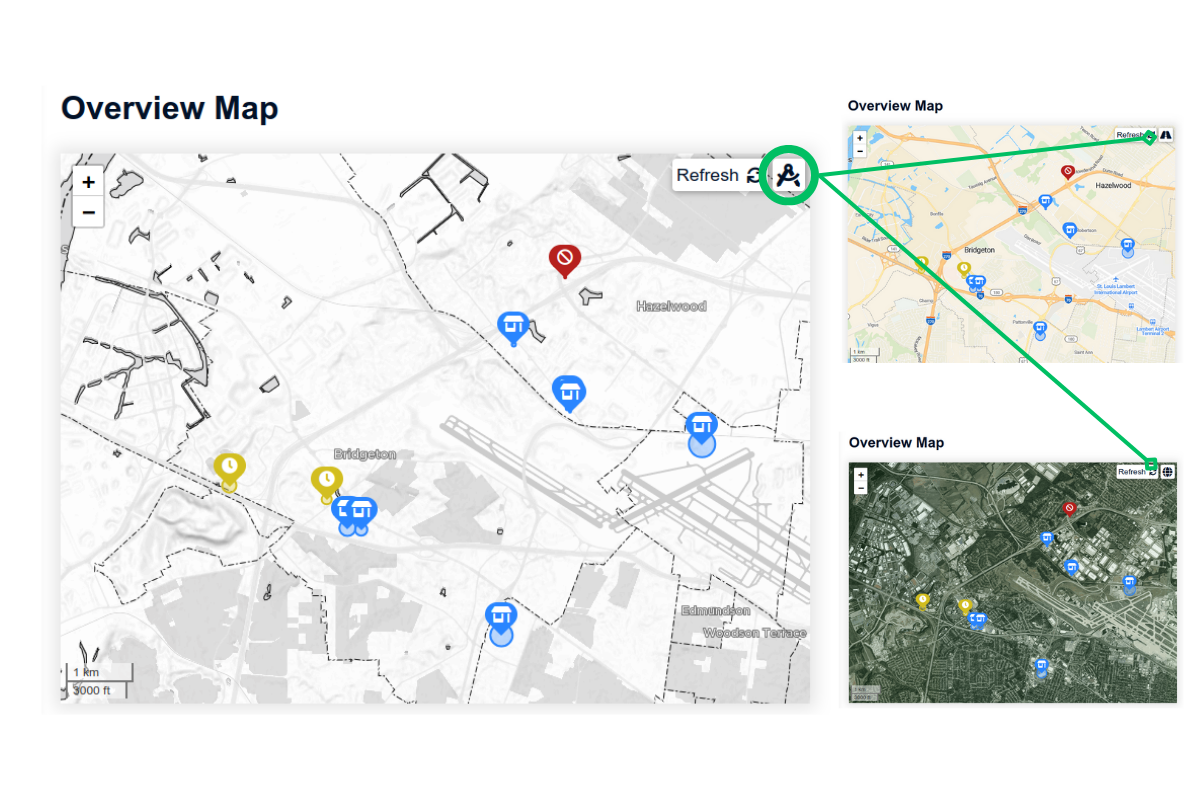
Navigate to the Overview Map. Use the icon in the upper-right corner to change the map’s color scheme, which can help you locate your site more easily.
-
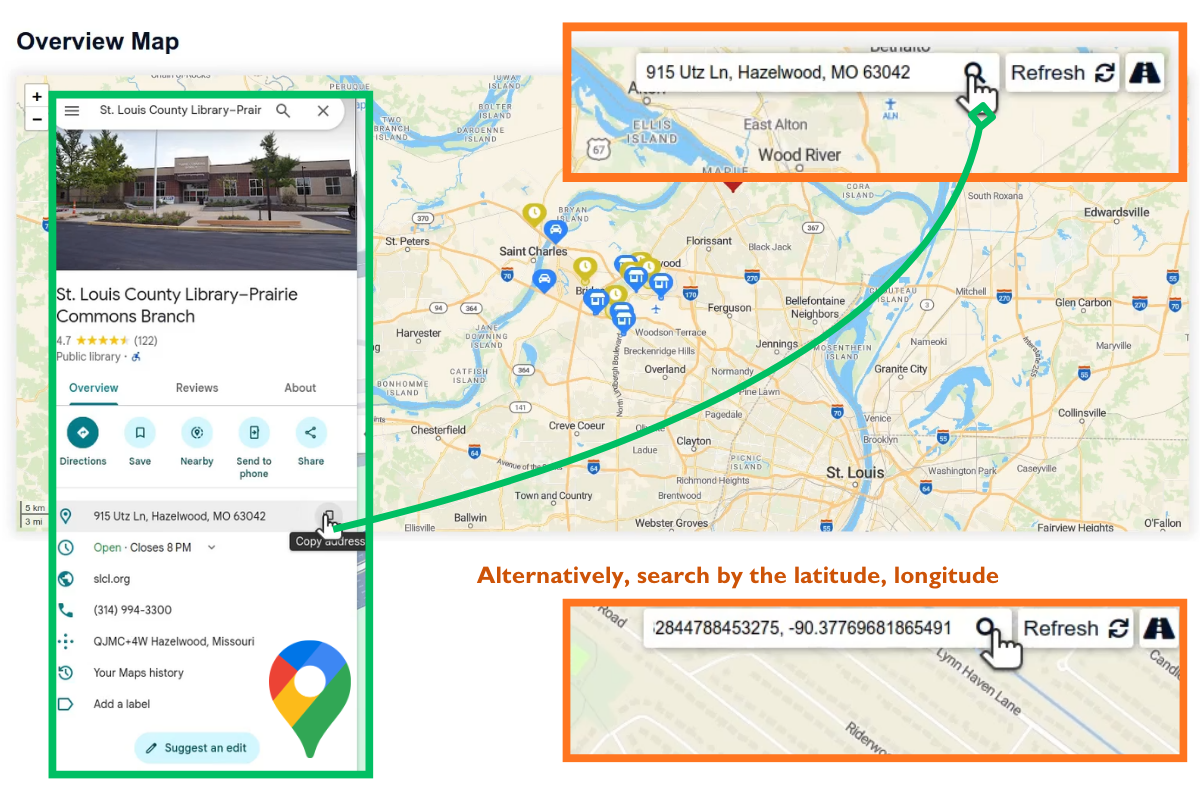
Use the search bar on the top right corner and an external map software, such as Google Maps, to help you find the location.
-
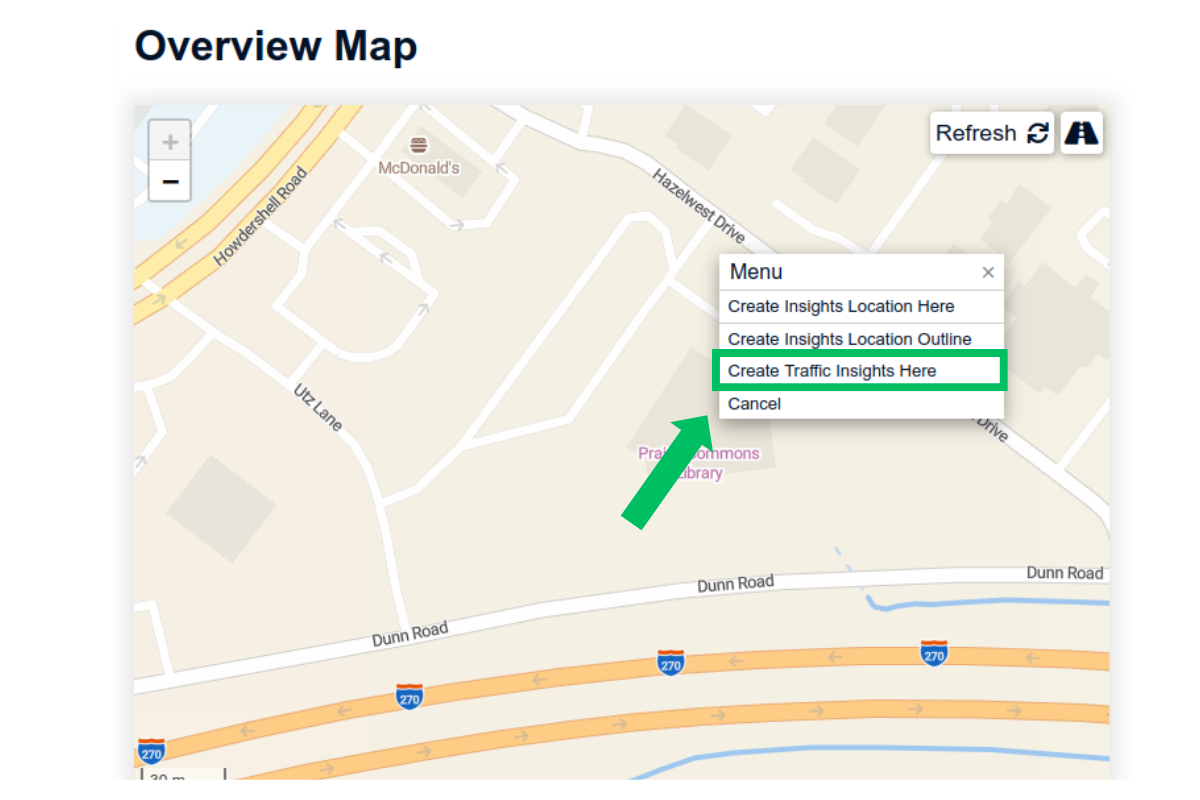
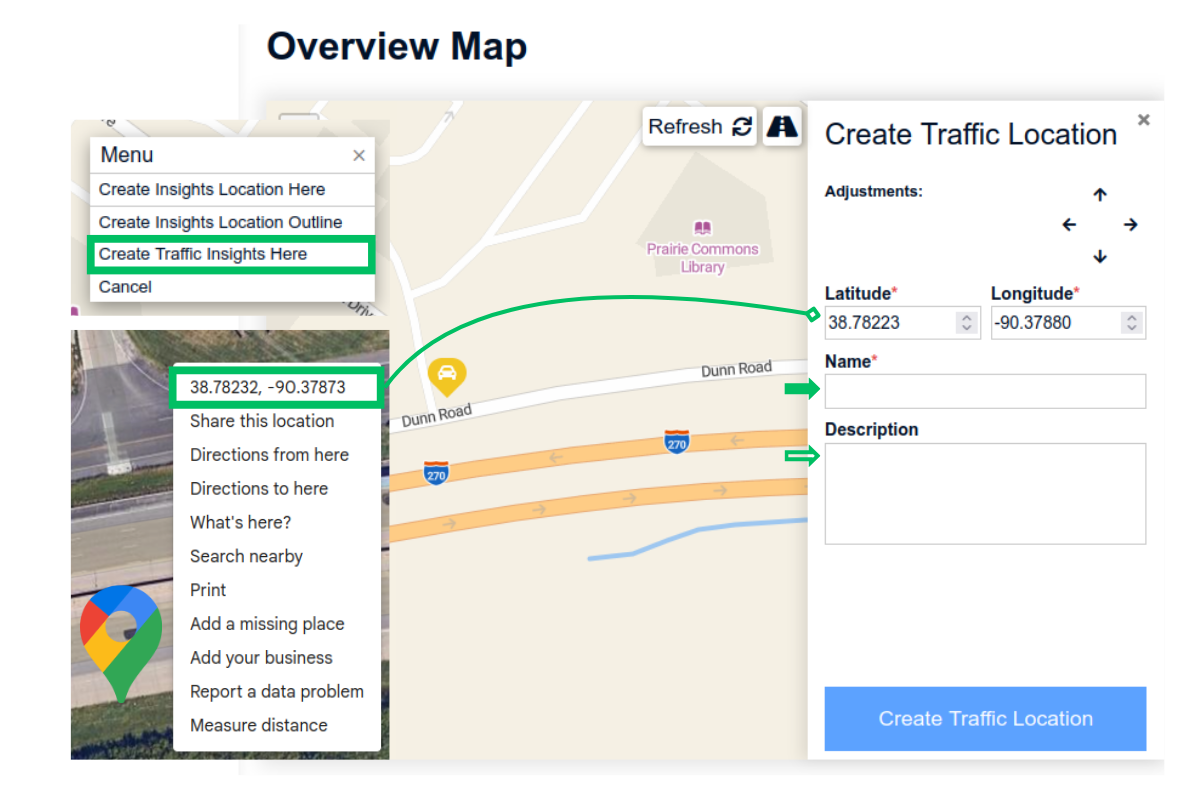
To create a new traffic location, zoom into the location on the map and right click to bring up the “Menu”. Use an external map software, such as Google Maps, to help you find the location. Click "Create Traffic Insights Here" for traffic insights. This is perfect for billboards, where you are interested in the traffic flow near the site, but not the dwell pattern.
-
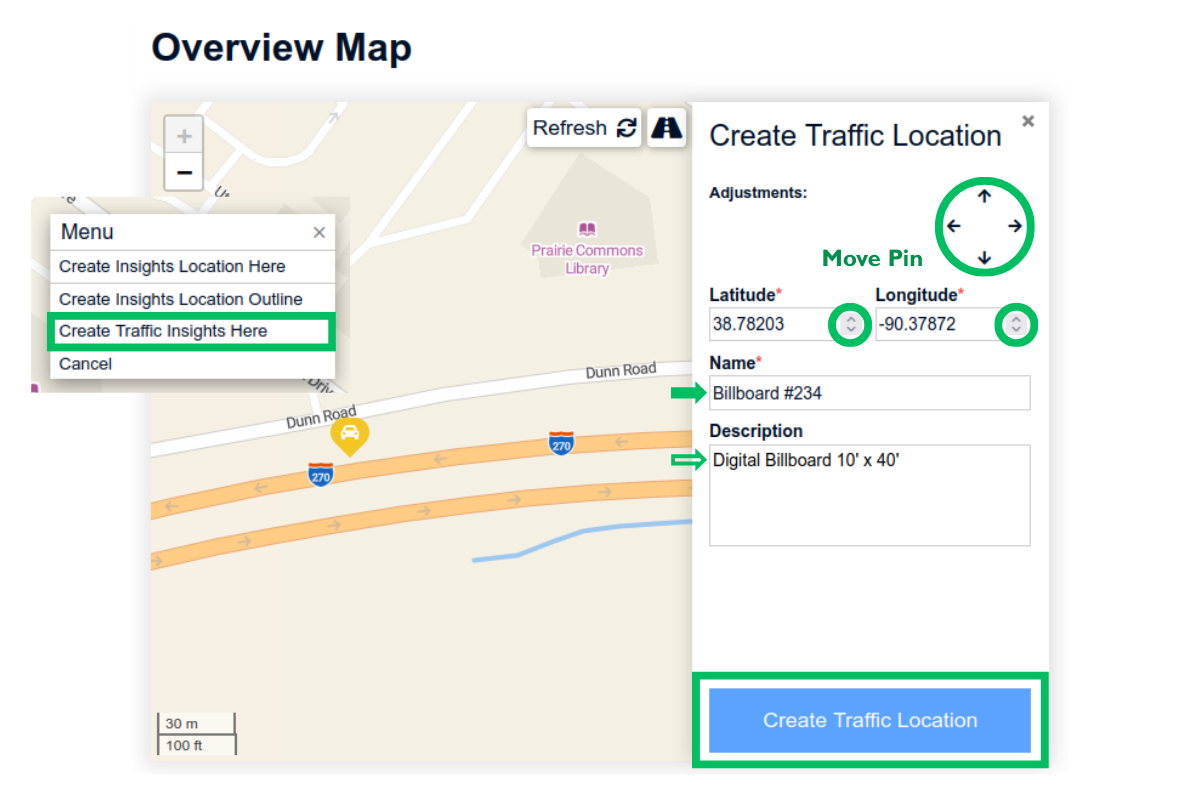
Enter the latitude and longitude for the site. Google Maps can be used to find this information if needed.
-
Use the adjustment arrows to move the pin to the exact location. Enter a name and description for organization. Click “Create Traffic Location.” Our support team will configure the relevant road segments for your site shortly.