Pro Tip 2: How to Archive Locations
Posted on 01 June 2026 01:53 pm
If there are approved locations you no longer actively use, you can archive them to keep your organization organized and reduce clutter on the Overview Map.
Archiving a location does not delete it from your account. Any purchased data packets remain accessible through the list views and location details pages. Archived locations are simply hidden from the Overview Map by default.
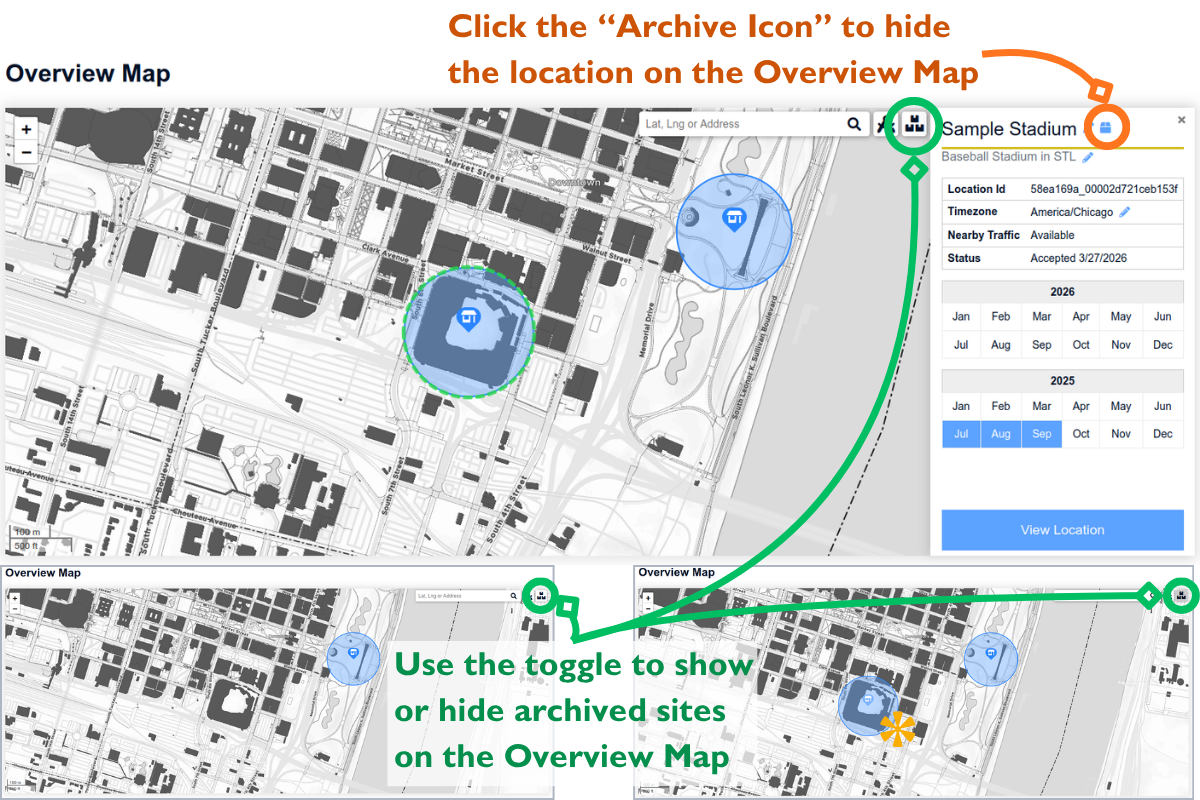
Archive a Location from the Overview Map
- Locate the site on the Overview Map.
- Click the location icon to open the details panel on the right side of the screen.
- Next to the location name, select the Archive icon (looks like a closed box).
After archiving the location:
- A confirmation message will appear in the lower-right corner indicating the update was successful.
- The Archive icon changes to an Unarchive icon (looks like an open box).
- The location marker on the map appears grayed out.
- The location is hidden by default when you open the Overview Map.
To view archived locations again, select the Show Archived Locations filter (looks like 3 boxes) in the upper-right corner of the Overview Map.
To unarchive a location:
- Enable the Show Archived filter.
- Select the archived location on the map.
- In the right-side panel, click the Unarchive icon (looks like an open box).
Archive a Location from List View
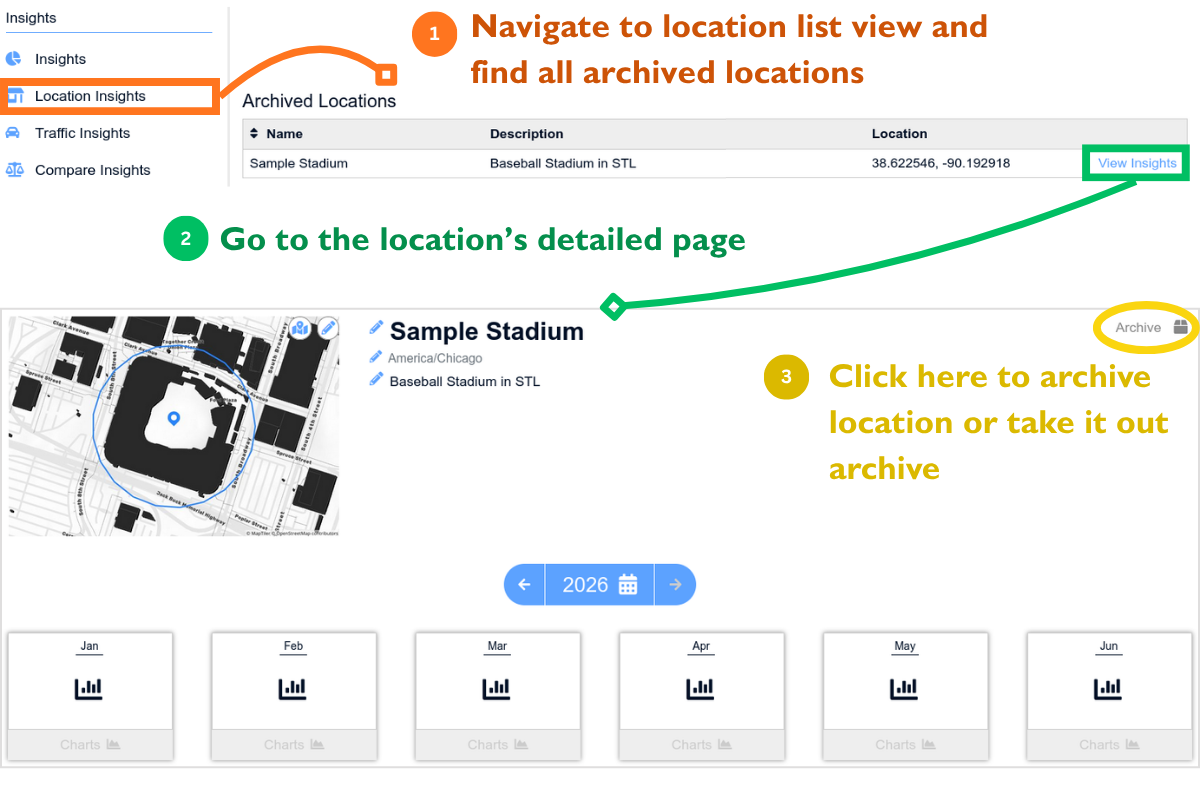
- Navigate to the Location Insights or Traffic Insights list view.
- Find the approved location you want to archive.
- Select View Insights to open the location's Details page.
- Click Archive in the upper-right corner.
Once Archived:
- The Archive button changes to Unarchive.
- You can click Unarchive at any time to restore the location.
Archived locations can be found under the Archived Locations section in the list view. From there, you can also unarchive locations as needed.
Notes
- Archiving only affects how locations are displayed; it does not remove data or purchased packets.
- Archived locations remain available in list views and location details pages.
- Unarchiving a location restores it to the Overview Map.